 by
by Public Wi-Fi Security: What Actually Protects Your Data When You Travel
Public Wi-Fi at airports, hotels, cafés and conference centers is convenient, especially when mobile data is limited or roaming is expensive. It also has a reputation for being inherently dangerous. That reputation comes partly from an earlier era of the web, when many websites sent information without strong encryption and people on the same network could more easily observe traffic.

The modern situation is more nuanced. Most major websites and apps now use HTTPS encryption, which protects information as it travels between your device and the website. The U.S. Federal Trade Commission notes that widespread encryption means public Wi-Fi is usually safer than it was in the past. That does not mean every hotspot, website or device is trustworthy. Fake networks, scam websites, outdated devices, stolen credentials and insecure account recovery can still create serious problems.
This guide explains what actually protects your information on public Wi-Fi, which risks remain, and how travelers can use shared networks without relying on fear-based advice.
HTTPS Changed the Public Wi-Fi Risk Model
When a browser connects to an HTTPS website, the connection between the browser and that site is encrypted. Someone sharing the same Wi-Fi network should not normally be able to read the contents of that encrypted session simply by observing network traffic.
The FTC’s current consumer guidance says that because most websites now use encryption, connecting through public Wi-Fi is usually safe. It recommends looking for https or the lock indicator in the browser address bar as evidence that the connection to the site is encrypted. See FTC guidance on public Wi-Fi safety.
What HTTPS protects
- Login information while it is transmitted to the legitimate website.
- Page contents sent between your browser and that site.
- Many form submissions and account actions.
- Network traffic from simple local eavesdropping.
What HTTPS does not prove
- That the website itself is honest.
- That you typed the correct domain.
- That your device has no malware.
- That your password has not already been stolen elsewhere.
- That a browser extension is not reading page data.
A scammer can create an HTTPS-enabled phishing website. Encryption protects the connection to the scammer; it does not transform the scam website into a legitimate business.
The Biggest Travel Risk May Be the Wrong Website, Not the Wi-Fi
People often focus on the person sitting nearby with a laptop. In practice, phishing and social engineering can be more realistic threats. A fake hotel login page, fraudulent airline support page or copied banking site can look professional and can use HTTPS.
Before entering sensitive information
- Check the domain carefully.
- Use a saved bookmark or official app for important financial services.
- Do not follow login links from unexpected messages.
- Be suspicious of urgent prompts asking you to “re-verify” an account.
- Do not install software because a hotspot page says it is required.
The FTC specifically warns that scammers can create encrypted websites. The lock icon tells you the connection is encrypted, not that the company behind the site is trustworthy.
Fake Hotspots and Look-Alike Network Names Still Matter
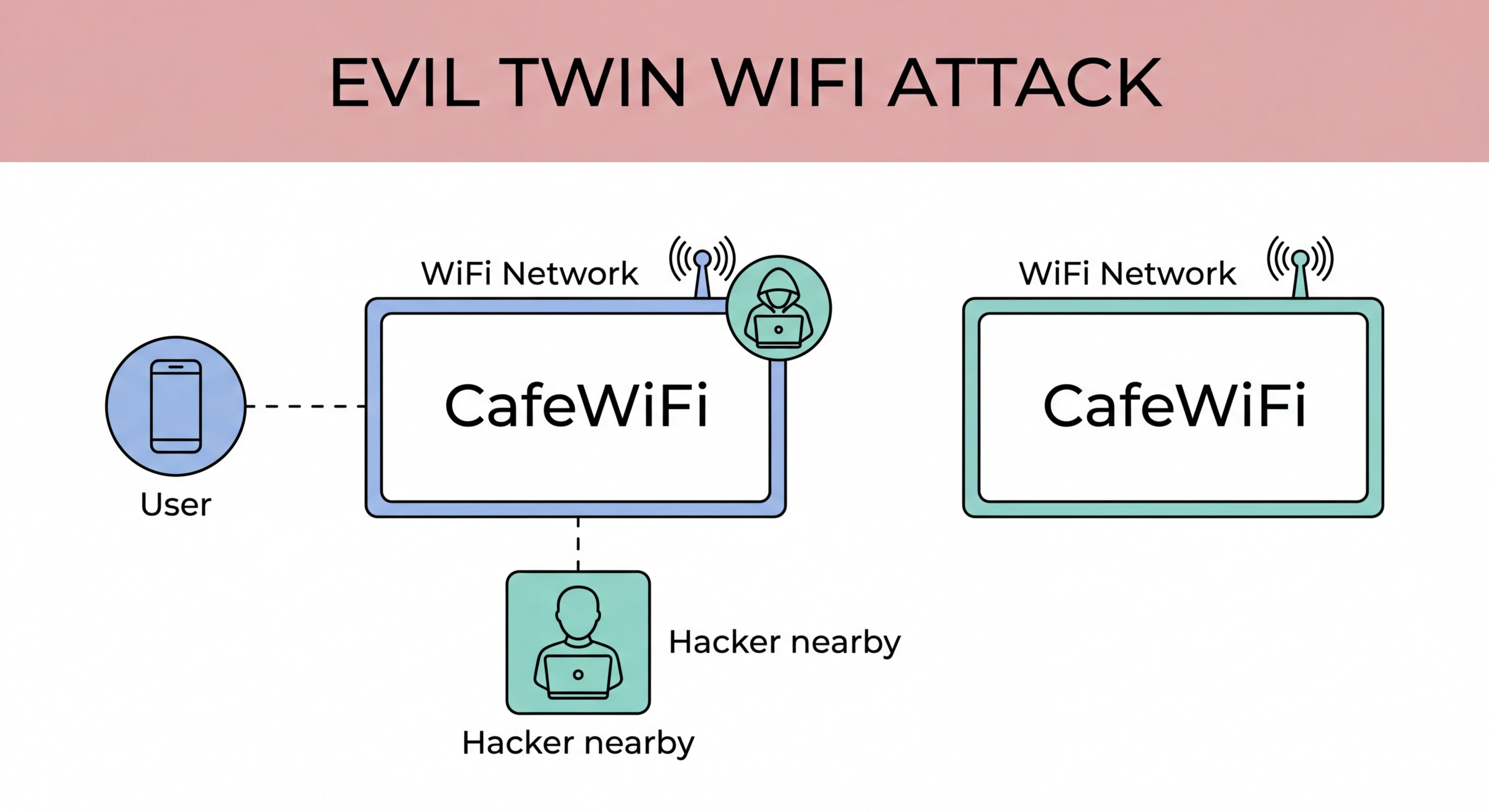
An attacker can create a wireless network with a name that resembles a nearby business, such as “Hotel_Guest_Free” or “Airport_WiFi_5G.” Even when HTTPS protects most web traffic, connecting to an unknown network can expose you to captive-portal scams, malicious DNS behavior or attempts to trick you into installing software or entering credentials.
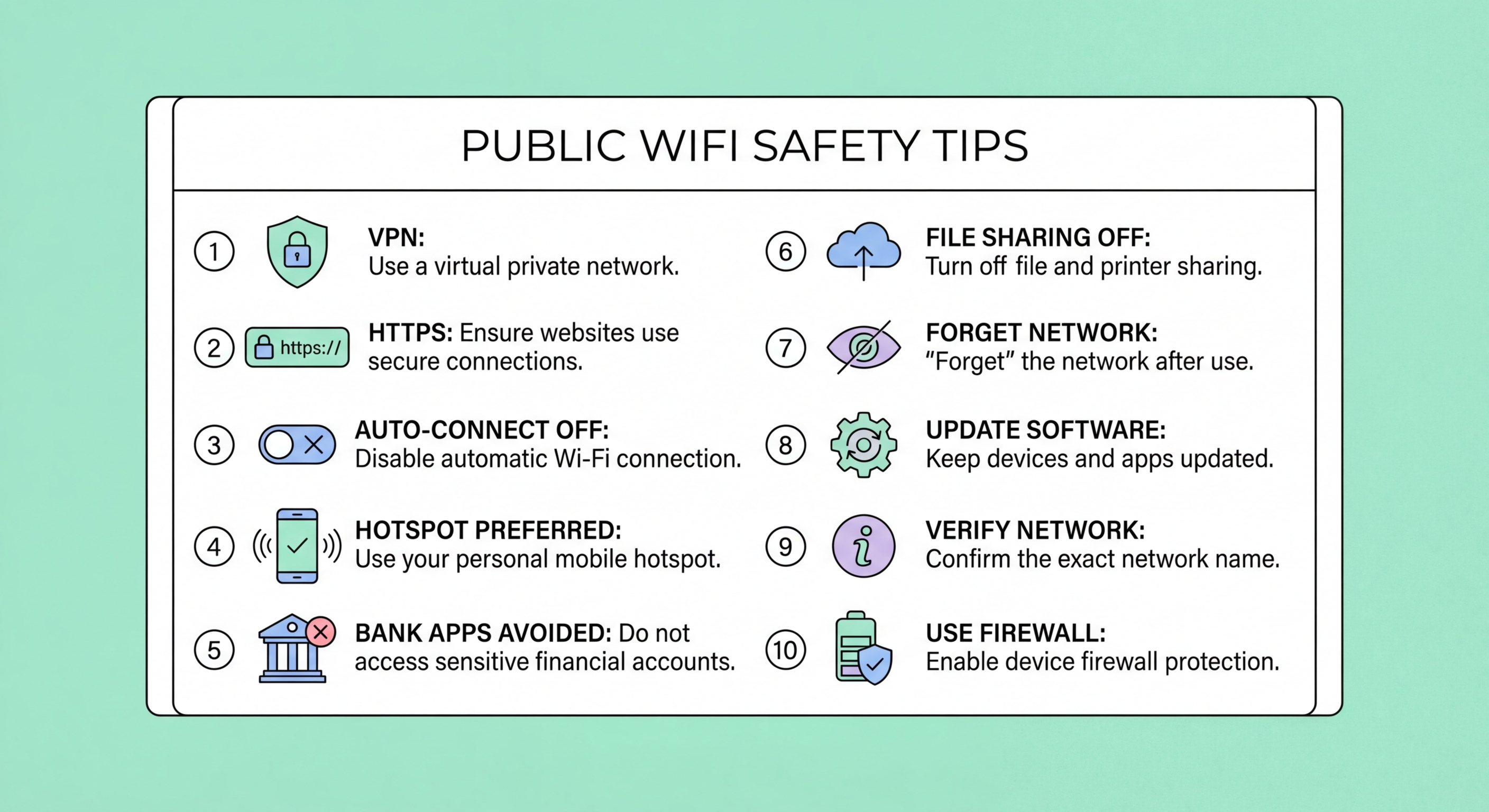
Verify the network name
- Ask staff for the exact Wi-Fi network name when possible.
- Avoid networks with suspiciously similar duplicate names.
- Do not assume the strongest signal is the legitimate hotspot.
- Read the captive portal before entering personal information.
- Disconnect if the network asks you to install certificates, browser extensions or unknown applications without a clear legitimate reason.
If a hotel or airport provides a printed card or official sign with the network name, use that source instead of guessing from the Wi-Fi list.
Keep the Device Updated Before You Travel
Public Wi-Fi advice sometimes treats the network as the entire security boundary. Your operating system, browser and applications matter just as much. Updates fix known vulnerabilities and improve phishing, malware and certificate protections.
The FTC recommends keeping security software, operating systems and browsers current and enabling automatic updates when practical. Update your phone and laptop before the trip, not while rushing to board a flight.
Pre-travel update checklist
- Operating system.
- Web browser.
- Messaging and email apps.
- Password manager.
- VPN client if your organization requires one.
- Endpoint security software.
- Business applications used while traveling.
For company devices, follow the organization’s endpoint-management policy rather than disabling controls to connect more easily.
Strong Account Security Protects You on Every Network
A stolen password remains dangerous whether it was stolen on public Wi-Fi, through phishing, in a data breach or from malware. Use unique passwords and multi-factor authentication or passkeys where supported.
Priority accounts
- Email.
- Password manager.
- Banking and payments.
- Cloud storage.
- Business identity provider.
- Social media accounts used for business.
- Developer or hosting accounts.
Our guide to multi-factor authentication explains why a second authentication factor helps after a password is compromised. Our new passkeys article explains phishing-resistant passwordless authentication.
Turn Off Unnecessary Sharing and Discovery
Operating systems may provide file sharing, printer discovery, nearby-device sharing or network discovery features. Those tools can be useful on a trusted office or home network but are unnecessary on an airport or café hotspot.
On an untrusted network
- Use the operating system’s public-network profile when available.
- Disable file and printer sharing unless needed.
- Avoid exposing local development servers.
- Turn off automatic connection to open Wi-Fi networks.
- Forget the network after the trip if you do not expect to use it again.
The exact settings vary across Windows, macOS, Android and iOS, but the principle is simple: a public network should not receive the same local access as your trusted home network.
Automatic Wi-Fi Reconnection Can Create Unnecessary Exposure
Devices often remember wireless networks. That is convenient at home but less useful for temporary public hotspots. Automatically joining remembered open networks can connect a device when the user is not paying attention.
Better habits
- Disable auto-join for temporary open networks.
- Remove old airport and hotel networks periodically.
- Confirm the network before reconnecting on a future trip.
- Turn Wi-Fi off when you do not need it if automatic connection is a concern.
This also reduces clutter from years of saved networks.
When a Mobile Hotspot Is a Better Choice
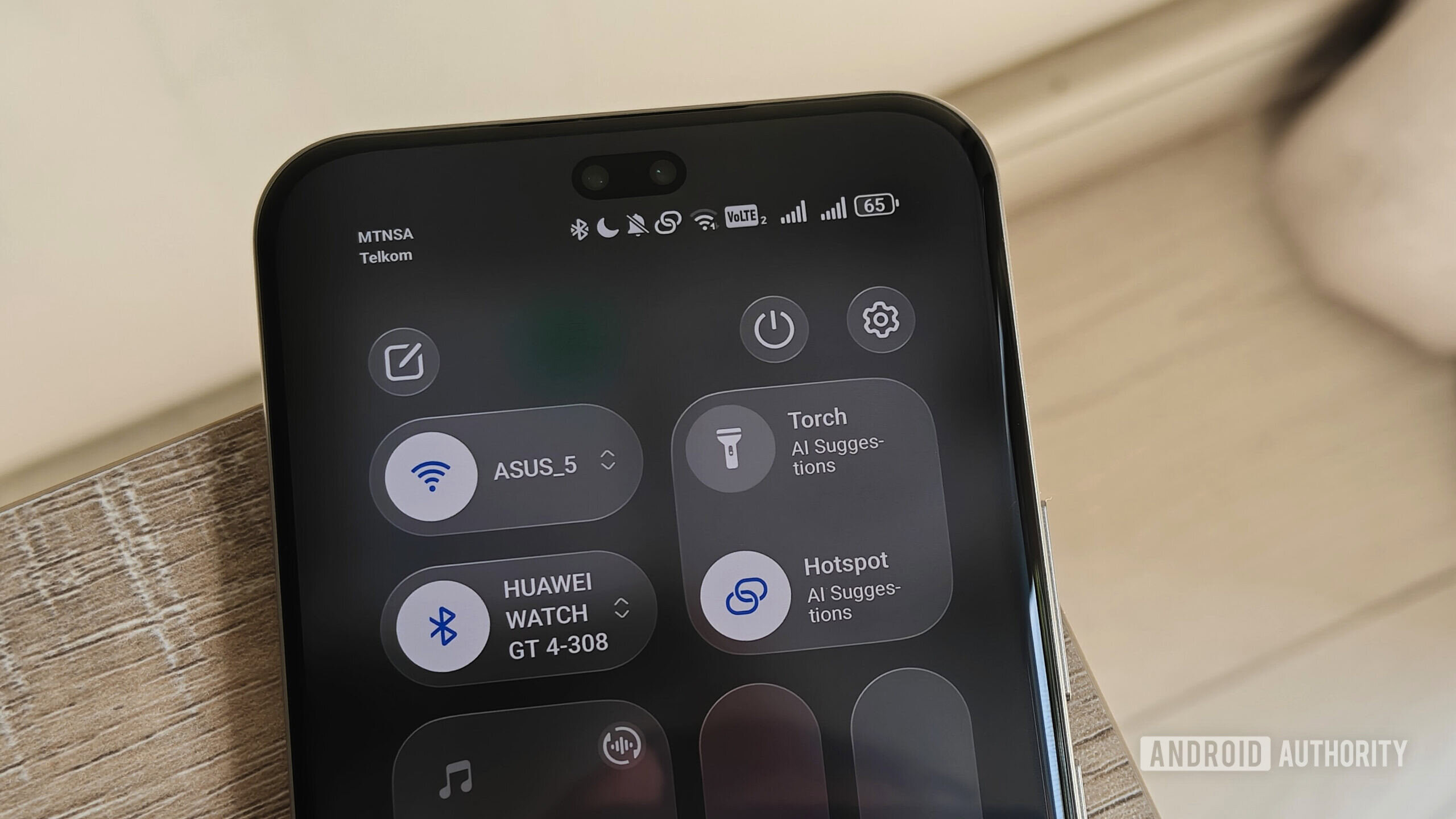
If you have reliable cellular data, a personal hotspot can reduce uncertainty about which wireless network you are joining. It is useful for short high-sensitivity tasks or locations where the public hotspot looks suspicious.
A personal hotspot may be preferable when
- You are administering a business system.
- You cannot verify the public Wi-Fi name.
- The captive portal requests unusual information.
- The public network is unstable.
- Your employer requires cellular or managed connectivity for certain tasks.
Cellular connections are not immune to every security problem. Strong account security and HTTPS still matter. The advantage is mainly control over the local connection and reduced exposure to an unknown shared hotspot.
What a VPN Does—and What It Does Not Do
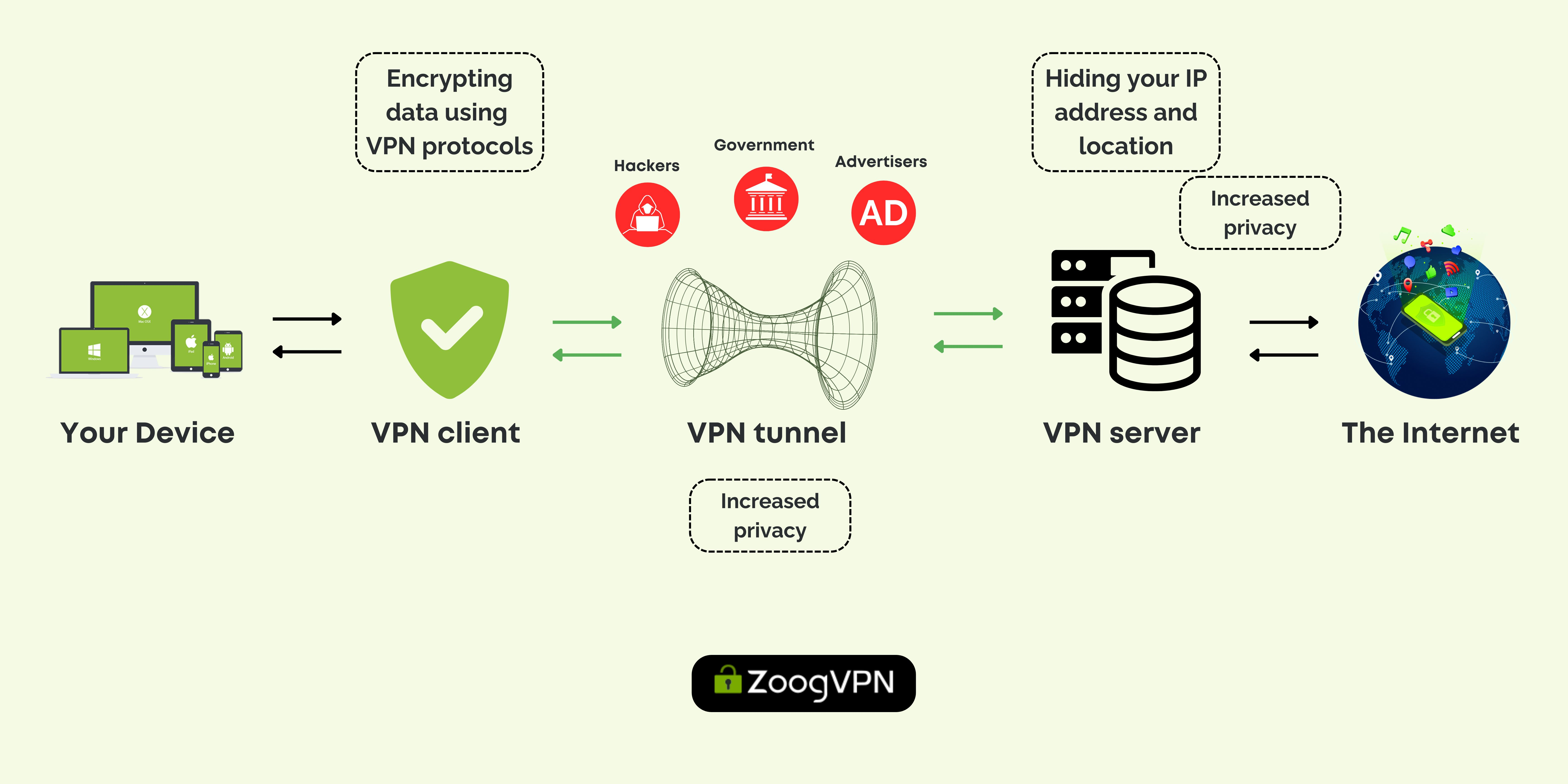
A virtual private network creates an encrypted tunnel between your device and a VPN server. Organizations often use VPNs to provide remote access to private internal systems or to protect traffic on networks they do not control.
Because HTTPS is now widespread, a consumer VPN is not the only thing preventing a nearby person from reading every website password. The browser-to-website HTTPS connection already provides important encryption. A VPN can still be useful for corporate remote access, privacy requirements, policy enforcement or additional protection for traffic that is not otherwise encrypted.
A VPN does not
- Make a phishing site legitimate.
- Remove malware from a device.
- Prevent you from giving credentials to a scammer.
- Guarantee anonymity.
- Replace account MFA.
Our existing article VPNs Explained provides a deeper breakdown of VPN strengths and limitations.
Use Extra Caution With Financial and Administrative Work
Even when public Wi-Fi is encrypted adequately for normal browsing, the consequence of a mistake varies by task. Editing a public article and approving a wire transfer are not equivalent.
For high-impact tasks
- Use the official app or a known bookmark.
- Verify the domain before login.
- Prefer a trusted cellular hotspot if available.
- Use MFA or passkeys.
- Avoid conducting sensitive work where others can see the screen.
- Log out when finished on shared or temporary devices.
- Never approve an unexpected security prompt just because it appears during travel.
Security should be proportional to the consequence of account compromise.
Hotel and Airport Business Centers Are a Different Risk
A public computer is not the same as public Wi-Fi. You do not control the operating system, browser extensions, malware state or stored browser data on a shared terminal.
Avoid using shared public computers for
- Email accounts.
- Banking.
- Password managers.
- Cloud administrator panels.
- Confidential file access.
If a shared computer must be used for a low-risk task, avoid saving passwords or files and sign out fully. A personal device is preferable for accounts that matter.
Public Wi-Fi Security Checklist for Travelers
| Before travel | While connected | After use |
|---|---|---|
| Update device and browser | Verify hotspot name | Forget temporary network |
| Enable MFA/passkeys | Check website domain and HTTPS | Review unusual security alerts |
| Prepare mobile hotspot | Avoid unexpected downloads | Revoke suspicious sessions |
| Review sharing settings | Use public-network profile | Report lost devices quickly |
| Know employer travel policy | Use VPN if required | Change credentials if compromise suspected |
If Something Suspicious Happens
If you entered a password on a site and later suspect it was fraudulent, act quickly.
- Use a trusted device and connection.
- Change the affected password.
- Change reused passwords on other services.
- Enable or reset MFA.
- Review account sessions and sign out unknown devices.
- Check financial activity if payment information was involved.
- Tell your employer immediately if a business account or device was affected.
For phishing-specific prevention and response, see our modern phishing defense guide.
Frequently Asked Questions
Is public Wi-Fi always unsafe?
No. The FTC notes that widespread HTTPS encryption means public Wi-Fi is usually safer than it was in the past. You should still verify the network, use updated devices and watch for phishing and fake sites.
Do I always need a VPN on public Wi-Fi?
Not for every ordinary HTTPS website. A VPN may still be required by your employer or useful for private network access and additional traffic protection. It does not replace safe browsing or strong authentication.
Does the lock icon mean a website is trustworthy?
No. It means the connection to that site is encrypted. Scam websites can use HTTPS too, so check the domain and context.
Is a phone hotspot safer?
It gives you more control over the local network and avoids connecting to an unknown public hotspot, which can make it preferable for sensitive tasks. Account and device security still matter.
Conclusion
Public Wi-Fi security in 2026 is not accurately described by the old rule that every hotspot is automatically dangerous. HTTPS has changed the risk considerably, and most modern web traffic is encrypted in transit. The remaining risks are often about identity, fake networks, scam websites, outdated devices and weak account security.
Verify the hotspot, check the domain before signing in, keep devices updated, disable unnecessary sharing and protect important accounts with MFA or passkeys. Use a mobile hotspot or organization-required VPN for higher-risk work when appropriate. The goal is not to fear shared networks; it is to understand which security layers actually protect the data you care about.