 by
by Website Backup Strategy: How Often to Back Up and How to Test Restores
A backup is useful only if it contains the right data, can be found when needed and can actually be restored. Many website owners discover this distinction during the worst possible moment: a failed update, database corruption, malware incident or accidental deletion. The dashboard may say “daily backups enabled,” but the copy may be incomplete, too old or stored in the same environment that just failed.
A strong website backup strategy starts with the amount of data the business can afford to lose and the amount of downtime it can tolerate. A brochure site updated once a month and a busy ecommerce store taking orders every minute should not use the same backup schedule.
This guide explains how to design a practical backup and restore process for WordPress and other database-driven websites without turning backup management into unnecessary complexity.
Understand What a Complete Website Backup Includes
WordPress separates important information across files and a database. The database contains posts, pages, settings and other structured application data. The files include themes, plugins, uploaded images, configuration and additional code.
WordPress’s official administration handbook explicitly states that a typical full-site backup needs both database and files. Its current file-backup documentation also notes that downloading WordPress files does not normally back up the database because the database is stored separately.
See the official WordPress Backups guide, file backup documentation and database backup documentation.
A complete backup set may contain
- Database export or snapshot.
- Uploaded media.
- Active and customized themes.
- Plugins when needed for recovery.
- Configuration such as
wp-config.php. - Web-server configuration such as relevant
.htaccessrules. - Custom code or scripts.
- Documentation of external dependencies.
Some core files can be downloaded again, but customized content and configuration deserve special attention.
Backup Frequency Should Follow Data Change Rate
“Daily backups” sound responsible, but frequency should be based on how quickly valuable information changes.
Ask one question
If the site failed right now, how much recent data could we accept losing?
This is closely related to recovery point objective, often shortened to RPO. If you can accept losing up to 24 hours of changes, a daily backup may fit. If losing 30 minutes of orders would be unacceptable, you need a much more frequent strategy.
| Website type | Change rate | Possible starting cadence |
|---|---|---|
| Small brochure site | Rare updates | Weekly plus before changes |
| Active blog/news site | Daily content | Daily or more often based on publishing |
| Membership/community | Frequent user data | Multiple times daily or continuous strategy |
| Ecommerce | Orders and customer changes | Frequent database protection based on acceptable order loss |
| Development/staging | Irregular technical changes | Before major deployments plus scheduled copies |
These are planning examples, not universal rules. WordPress’s own backup guide notes that frequency depends on how often the site changes and the impact of losing recent posts or data.
RPO and RTO Turn Backup Into a Business Decision
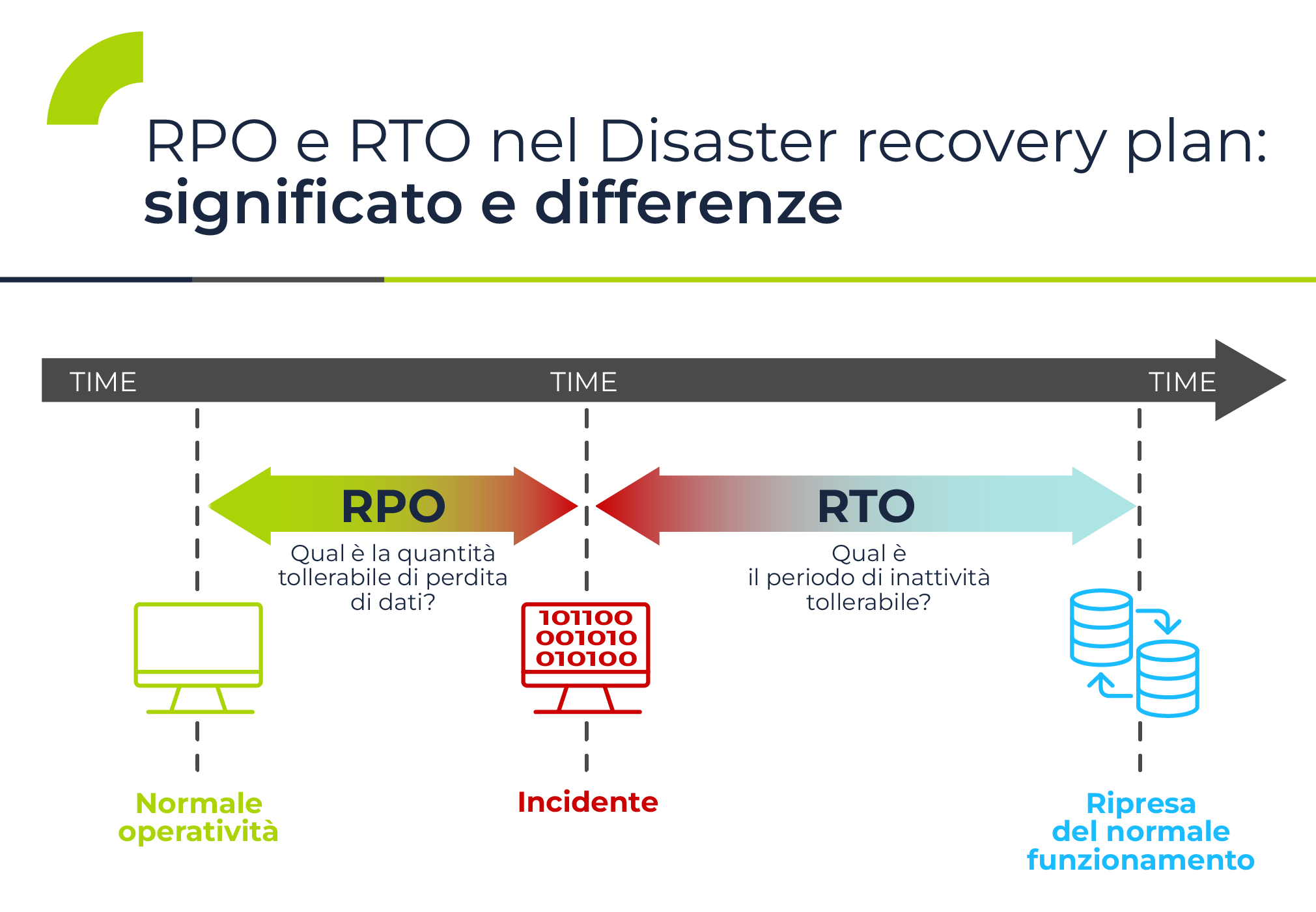
Two simple concepts make backup planning much clearer.
Recovery Point Objective (RPO)
RPO describes how much recent data loss is acceptable. A four-hour RPO means the organization is planning for the possibility of restoring data that may be up to four hours old.
Recovery Time Objective (RTO)
RTO describes how quickly service should be restored after a disruption. A site can have excellent hourly backups but still take two days to recover if nobody knows how to restore them.
Backups primarily help RPO. Documentation, infrastructure readiness and tested restores help RTO.
Example
An online store may choose an RPO of one hour and an RTO of four hours. That implies frequent transaction protection and a recovery process that has already been tested. A hobby blog may accept a one-week RPO and a much longer RTO.
Use More Than One Backup Location
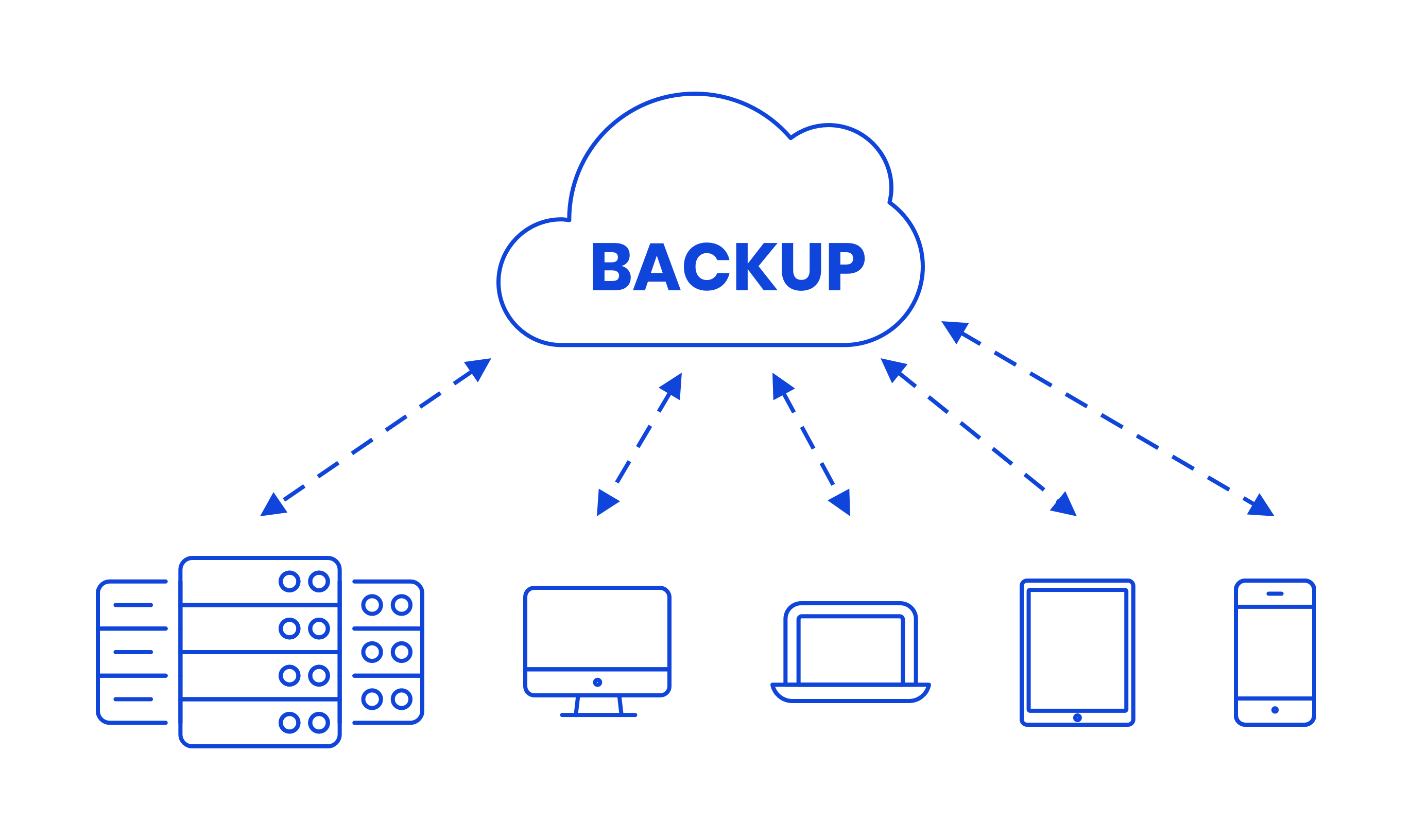
A backup stored only on the same server as the production site can disappear in the same incident. Disk failure, account compromise or accidental deletion may affect both.
WordPress’s current general backup guidance recommends retaining several recent copies and using different locations. A practical interpretation is to keep multiple independent copies rather than relying on one provider dashboard.
Possible storage locations
- Host-managed backup system.
- Separate cloud/object storage.
- Another hosting account or region.
- Encrypted local copy for important periodic archives.
Do not copy backups to an unencrypted personal drive if they contain customer or account information. Backup security should match the sensitivity of production data.
Retention Protects You From Problems Discovered Late
Keeping only yesterday’s backup is risky because some failures are discovered days or weeks after they begin. Malware may remain hidden. A plugin bug may corrupt records gradually. A content editor may notice a deleted page much later.
A layered retention example
- Hourly copies for the last 24–48 hours on high-change systems.
- Daily copies for one to four weeks.
- Weekly copies for several months.
- Monthly archives where business or compliance requirements justify them.
Longer retention increases storage cost and privacy responsibility. Do not retain everything forever without a reason. Define deletion rules for old backups just as you define retention for production data.
Create Backups Before High-Risk Changes
A scheduled backup may be several hours old when you install a major plugin, update a theme or migrate a database. Create a fresh restore point immediately before changes that could affect site behavior.
Pre-change backups are useful before
- WordPress core upgrades.
- Major plugin or theme updates.
- PHP or database version changes.
- Large content imports.
- Search-and-replace operations.
- DNS or hosting migrations.
- Custom code deployments.
- Database cleanup.
WordPress’s official database backup documentation strongly recommends backing up at regular intervals and before upgrades. A pre-change restore point shortens rollback because you know exactly which state you want to return to.
Automated Backups Need Monitoring
Automation is necessary for most production sites, but “scheduled” does not mean “successful.” Jobs can fail because storage is full, credentials expire or a backup times out.
Monitor these signals
- Last successful backup time.
- Backup size compared with normal history.
- Destination storage capacity.
- Database dump completion.
- File count or archive integrity.
- Error notifications.
- Encryption status.
A 20 KB “successful” backup of a 10 GB site deserves investigation. Size anomalies are not proof of failure, but they are a useful warning.
Restore Testing Is More Important Than Backup Screenshots
The only reliable way to know whether a backup works is to restore it somewhere safe. Do not wait for production to fail.
A safe restore test
- Create an isolated staging or temporary environment.
- Choose a real recent backup set.
- Restore files.
- Restore or import the database.
- Update environment-specific configuration if required.
- Open the site and verify important pages.
- Test login and admin access.
- Test forms, ecommerce or membership functions if relevant.
- Confirm media files load.
- Record restore time and any manual steps.
WordPress’s official database documentation provides restore methods using tools such as phpMyAdmin and MySQL/MariaDB utilities. The exact process varies by host and backup product.
Do Not Restore an Old Ecommerce Database Blindly
Dynamic transactional websites create a special challenge. Restoring an old database may remove orders, account changes or inventory updates created after the backup.
Before restoring production ecommerce
- Identify the exact time of the backup.
- Determine what transactions happened afterward.
- Understand whether payment data exists in external providers.
- Plan how to reconcile missing orders.
- Consider selective recovery instead of full rollback.
- Place the site into an appropriate maintenance workflow if required.
For ecommerce architecture, see our hosting stack for high-performance ecommerce, which also discusses transaction-sensitive recovery.
Backups Are Not the Same as High Availability
A backup helps recover after data loss or corruption. It does not automatically keep the site online during a server failure. High availability uses redundant systems to reduce downtime, while backups preserve recoverable data and state.
A website may need both. A business-critical application can use redundant infrastructure for availability and independent backups for corruption, accidental deletion or security incidents.
Protect Backups From the Same Attacker
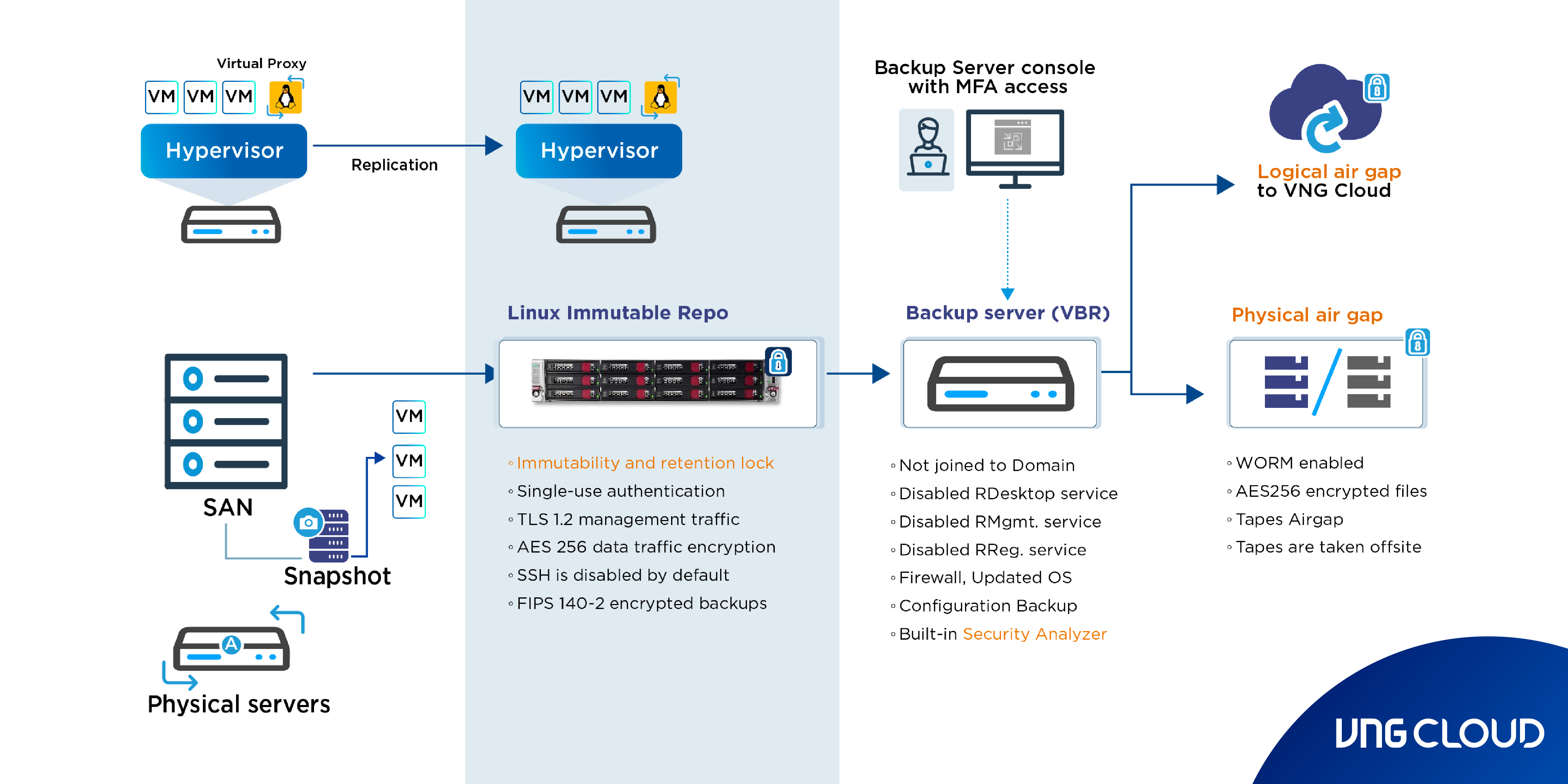
If a compromised administrator account can delete production and every backup, the backup strategy has a serious weakness.
Security practices
- Use separate credentials for backup storage.
- Enable MFA on storage/provider accounts.
- Use least-privilege API permissions.
- Encrypt sensitive backups.
- Keep at least one copy outside the production account where practical.
- Protect recovery keys.
- Log backup deletions or policy changes.
Our small-business cybersecurity checklist provides additional account-security controls.
Document the Restore Process
A backup strategy that only one freelancer understands is fragile. Write a short recovery runbook.
Include
- Where backups are stored.
- Who can access them.
- How to choose a restore point.
- How files and databases are restored.
- DNS or configuration changes required.
- How to validate the restored site.
- Who approves production rollback.
- How to communicate downtime.
Keep the runbook somewhere accessible during a site outage; do not store the only copy inside the website that may be unavailable.
Website Backup Strategy Checklist
| Area | Decision |
|---|---|
| Scope | Database + required files/configuration |
| RPO | Maximum acceptable data loss |
| RTO | Target recovery time |
| Frequency | Based on data change rate |
| Retention | Multiple recent and older restore points |
| Location | At least one independent copy |
| Security | MFA, encryption, separate access |
| Testing | Scheduled staging restore |
| Documentation | Recovery runbook and owners |
Frequently Asked Questions
How often should I back up WordPress?
Base the schedule on how often valuable data changes and how much loss you can accept. A weekly brochure site and an active ecommerce store require different strategies.
Are hosting-provider backups enough?
They may be a strong part of the strategy, but understand retention, restore access and whether copies are isolated from the production account. Many businesses benefit from an additional independent copy.
Do I need to back up WordPress core files?
Core can often be downloaded again, but full recovery still needs the database and site-specific files such as uploads, configuration, custom themes or plugins. Use a backup method designed for your actual recovery process.
How often should I test a restore?
Test often enough that changes in hosting, plugins or backup tooling do not remain undiscovered. Higher-risk websites should test more frequently and after major changes to backup architecture.
Conclusion
A dependable website backup strategy is built around recovery, not around the presence of a backup button. Identify the database and files needed for a complete site, choose frequency from the acceptable data-loss window, retain multiple restore points and store at least one copy independently.
Most importantly, test a real restore. Record how long it takes and what manual steps are required. A tested backup turns a serious incident into a recovery procedure; an untested backup is only a hope that the files will work when the site needs them most.