 by
by Browser Security Checklist: Extensions, Updates, Permissions and Safer Settings
The web browser is one of the most trusted applications on a modern computer. It handles email, banking, cloud storage, business dashboards, password managers, online documents and administrative tools. That makes browser security important even when the operating system and antivirus software are up to date.

Most browser risks do not require a dramatic “browser hack.” An unnecessary extension may have permission to read every page. A user may ignore a phishing warning. An old browser version may contain a known vulnerability. A downloaded file may be opened without checking where it came from. A shared browser profile may keep sensitive sessions signed in.
This guide provides a practical browser security checklist for individuals and small businesses. The examples use current Chrome documentation where useful, but the underlying principles—updates, least privilege, extension review, safer downloads and protected accounts—apply across modern browsers.
Keep the Browser Updated Automatically
Browsers are complex applications that process untrusted code and content from websites every day. Security vulnerabilities are discovered regularly, and browser vendors release patches to address them. Running an old version leaves the browser exposed to flaws that may already be publicly known.
Good update habits
- Enable automatic browser updates.
- Restart the browser when an update requires it.
- Keep the operating system updated too.
- Update managed work devices through the organization’s normal process.
- Remove unsupported browsers that no longer receive security fixes.
Do not postpone updates indefinitely because many tabs are open. Use tab recovery, bookmarks or a session-management feature rather than staying on an outdated browser for weeks.
Review Every Browser Extension You Have Installed
Extensions can be powerful because they run inside the browser and may interact with websites, tabs, downloads, clipboard data or page content. That power is useful for password managers, accessibility tools and work applications, but it also means unnecessary extensions increase the browser’s attack surface.
Google’s Chrome Web Store documentation explains that extensions may request permissions to read or modify data on websites, access browsing history, view tabs or interact with information users copy and paste. See Chrome’s extension permission guidance.
Run a quarterly extension audit
- Open the browser’s extension-management page.
- Remove extensions you no longer use.
- Check the developer or publisher of each remaining extension.
- Review what website data it can access.
- Restrict site access where the extension supports it.
- Remove duplicate extensions that perform the same job.
- Reconsider extensions that suddenly request broader permissions.
A browser with five necessary extensions is easier to understand and defend than one with forty forgotten add-ons.
Understand “Read and Change Data on All Websites”
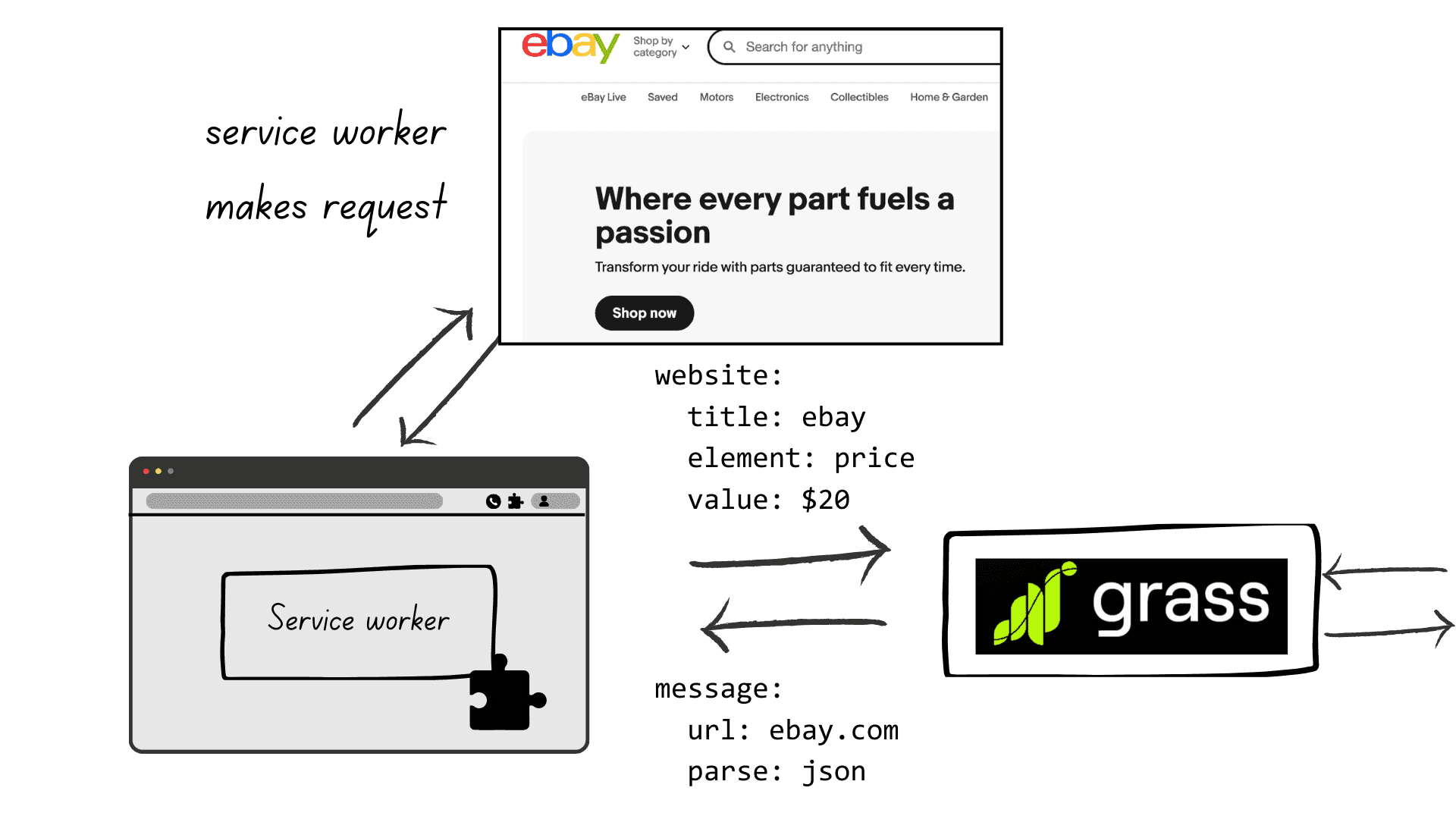
One of the most important browser-extension permissions is the ability to read or change data on sites you visit. Google classifies broad website-data access as a significant permission because the extension may be able to interact with information on many pages.
This does not mean every extension requesting broad access is malicious. A password manager, accessibility product or content blocker may legitimately need to work across sites. The question is whether the requested permission matches the product’s function.
Ask these questions
- Why does this extension need access to every website?
- Can access be limited to specific sites?
- Does it need access only when I click it?
- Is the developer reputable and actively maintaining the extension?
- Would compromise of this extension expose sensitive pages?
Chrome’s current extension-management documentation allows users to change some site-data access permissions, including whether an extension can operate on specific sites or when clicked. See Chrome extension management guidance.
Take Unsafe-Site Warnings Seriously
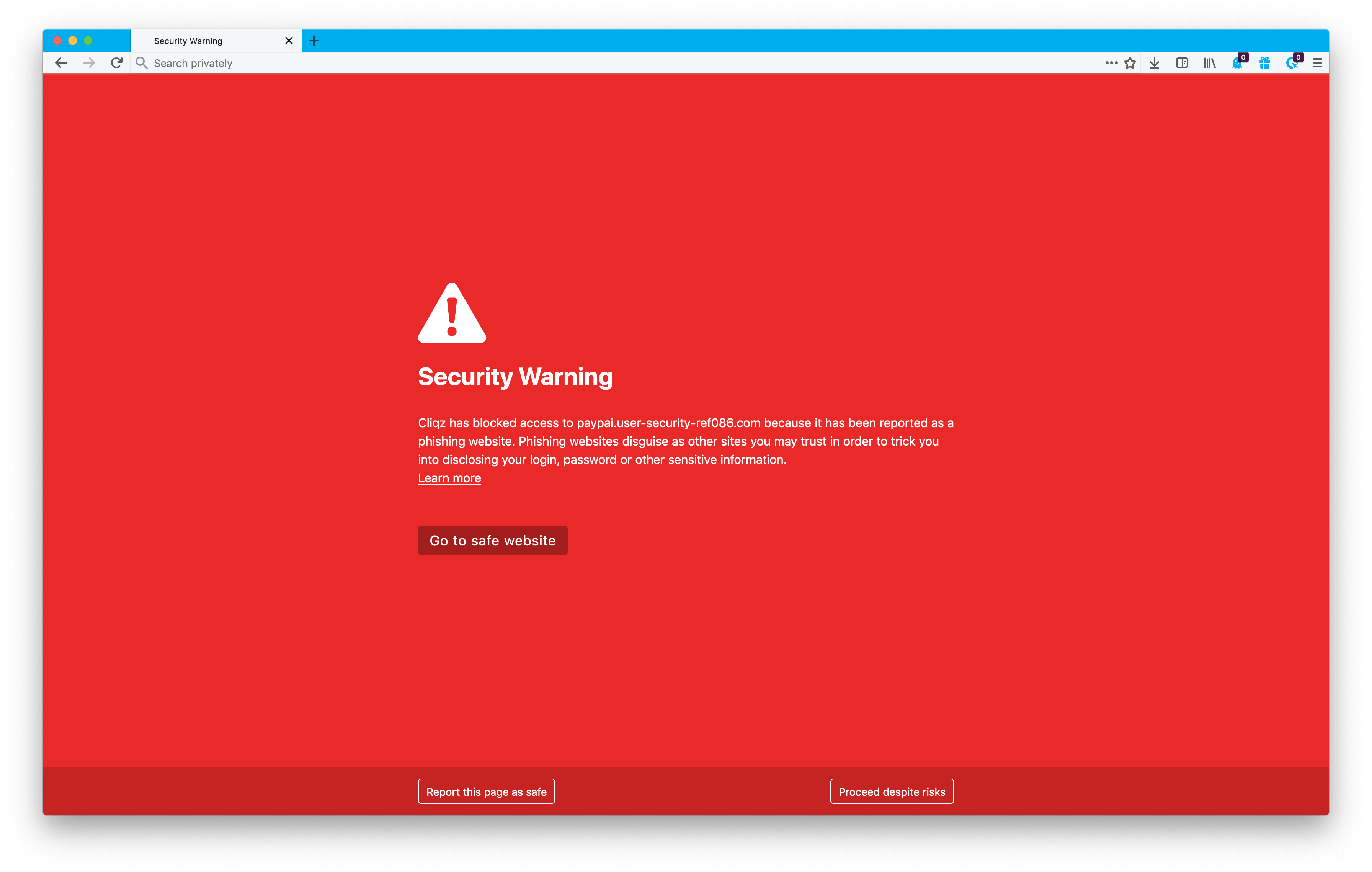
Modern browsers maintain reputation and threat-detection systems that warn users about known phishing, malware and social-engineering sites. Google Safe Browsing, for example, checks sites, extensions and downloads against threat information and displays warnings for dangerous destinations.
Google’s current unsafe-site warning documentation recommends not visiting sites flagged for phishing, malware or unwanted software. Bypassing a warning should be an exceptional troubleshooting decision, not normal behavior.
If a warning appears
- Stop before entering credentials.
- Check whether the URL is correct.
- Navigate to the service using a known bookmark or official app.
- Do not download “security fixes” offered by the suspicious page.
- Tell your IT/security contact if the site is required for work.
Our phishing defense guide explains how fake login pages and social engineering bypass user attention.
Choose a Safe Browsing Protection Level Deliberately
Chrome currently offers Standard and Enhanced Safe Browsing protection. Standard protection checks sites, extensions and downloads against known threats. Enhanced protection shares additional browsing-related security data with Google in real time to provide broader warnings about known and emerging threats.
Google documents the privacy trade-offs and protection differences in its Safe Browsing protection-level guide and Safe Browsing privacy documentation.
For a business environment
Do not let every user independently disable security controls without understanding company policy. Managed browser settings can standardize phishing and download protections across work devices.
Downloads Deserve More Attention Than the File Name
A malicious file can be named “Invoice.pdf.exe,” “security-update.zip” or something equally ordinary. Browsers can warn about known dangerous downloads, but users still need to evaluate context.
Before opening a download
- Confirm you expected the file.
- Check the sender or source.
- Inspect the file type, not only the visible name.
- Do not disable security software because the file tells you to.
- Scan suspicious files using organization-approved tools.
- Open high-risk documents in protected environments when business policy requires it.
Google notes that Chrome Safe Browsing can warn about dangerous downloads and may offer additional checks under Enhanced protection.
Use Separate Browser Profiles for Work and Personal Activity
A separate browser profile can reduce accidental mixing of work credentials, personal extensions and browsing history. It is not a security sandbox, but it provides useful administrative separation.
A work profile can help separate
- Business bookmarks.
- Company extensions.
- Work password-manager configuration.
- Business sign-in sessions.
- Managed browser policies.
- Personal social and shopping accounts.
On shared family computers, a separate operating-system user account is stronger than relying only on browser profiles because it separates files and application data more broadly.
Protect the Browser Sync Account
Browser synchronization can copy bookmarks, settings, extensions and other information across devices. That convenience makes the sync account important. If an attacker takes over the account, they may gain access to synchronized information or attempt account recovery.
Protect it with
- A unique password or passkey.
- MFA where supported.
- Updated recovery information.
- Regular review of signed-in devices.
- Immediate sign-out of lost devices.
Our new passkeys guide explains how phishing-resistant authentication can strengthen important accounts once published.
Use a Password Manager Instead of Browser Memory Alone When Appropriate
Modern browsers include useful credential storage and breach warnings, but organizations may prefer a dedicated business password manager for shared vaults, access control and centralized offboarding.
The most important practice is using unique credentials. Whether they are stored in the browser or a dedicated password manager, avoid memorizing and reusing the same password across many accounts.
For business credentials
- Do not save shared passwords in personal browser profiles.
- Use approved organization tools.
- Remove access during offboarding.
- Protect the password manager or sync account with MFA/passkeys.
Review Website Notification Permissions
Browser notifications can be useful for email and collaboration tools. They can also be abused by low-quality or deceptive sites to push alarming messages that look like system security alerts.
Clean up notification permissions
- Remove sites you do not recognize.
- Deny notification requests from one-time pages.
- Do not click “Allow” because a page says it is required to prove you are human.
- Investigate browser pop-ups claiming the computer is infected before taking action.
If a notification says “your device has 12 viruses” and opens a sales page, it is not a trustworthy operating-system diagnosis simply because it appears near the browser toolbar.
HTTPS Protects Transport, Not Website Honesty
HTTPS encrypts information between the browser and a website. That is essential, especially on shared networks. But malicious websites can obtain HTTPS certificates too.
Check both encryption and identity context
- Confirm the domain spelling.
- Use bookmarks for high-value services.
- Be cautious with shortened or redirected URLs.
- Do not trust a site only because a lock icon appears.
- Question urgent login prompts reached from email or messaging links.
This distinction is also important on public Wi-Fi. See our new public Wi-Fi security draft for more detail.
Clear Unnecessary Site Permissions
Websites may request access to location, camera, microphone, notifications or clipboard functions. Grant access only when the feature genuinely requires it.
Periodically review
- Camera permissions.
- Microphone permissions.
- Location.
- Notifications.
- Automatic downloads.
- Pop-ups and redirects.
- Clipboard access where available.
A video-conference service needs camera access. A random coupon site probably does not.
Do Not Use Incognito Mode as a Security Product
Private or incognito browsing mainly changes what the browser stores locally after the session. It does not make the user anonymous to websites, the internet provider or a company network, and it does not block phishing or malware by itself.
Incognito can be useful for
- Temporary sessions on a trusted device.
- Testing a website without normal cookies.
- Avoiding local browsing-history persistence.
It should not replace a clean device, strong authentication or browser security protections.
Businesses Should Manage Extensions Centrally When Risk Justifies It
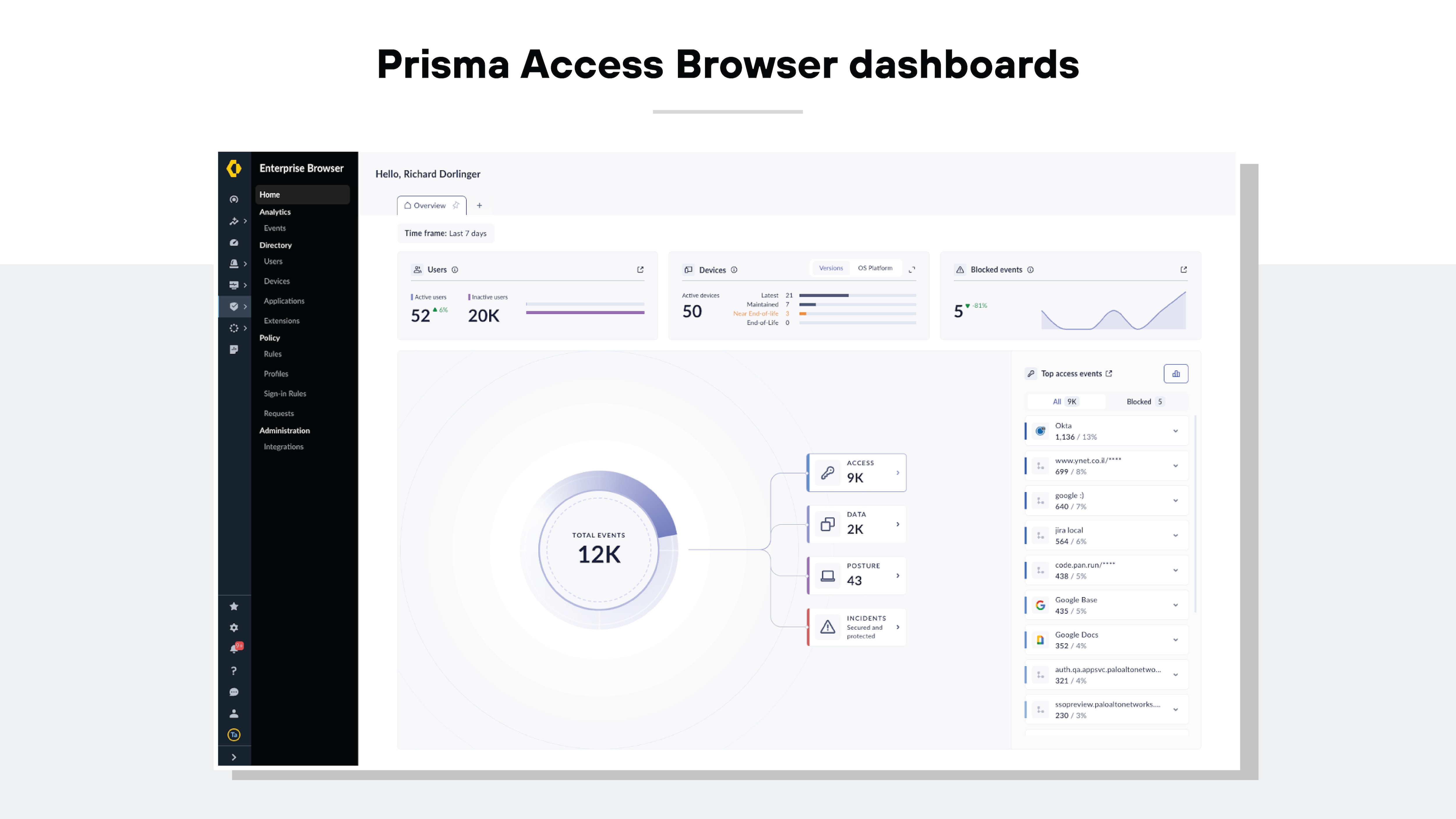
As teams grow, it becomes difficult to rely on every employee to evaluate extension permissions independently. Chrome Enterprise documentation provides tools and guidance for administrators to evaluate extension permissions and allow or block extensions based on organizational policy.
Google’s enterprise extension-permission guidance describes how administrators can assess permission risk.
A practical business policy can
- Maintain an approved extension list.
- Block extensions with unnecessary broad permissions.
- Require business justification for new extensions.
- Remove unsupported tools.
- Review extension inventory periodically.
This is especially important on devices used for financial systems, customer data or administrator access.
Browser Security Checklist
| Area | Recommended action |
|---|---|
| Updates | Enable automatic updates and restart when required |
| Extensions | Remove unused add-ons and review permissions |
| Safe browsing | Keep phishing/malware protection enabled |
| Downloads | Verify source and file type |
| Profiles | Separate work and personal use where helpful |
| Accounts | Use unique credentials and MFA/passkeys |
| Notifications | Remove unknown or abusive sites |
| Site permissions | Limit camera, mic, location and other access |
| HTTPS | Check domain identity as well as encryption |
| Business devices | Use centralized policies when appropriate |
What to Do If the Browser Starts Behaving Strangely
Unexpected search-engine changes, new tabs, redirects, unexplained extensions or persistent pop-ups can indicate unwanted software or a compromised extension.
- Update the browser.
- Review installed extensions.
- Remove unknown extensions.
- Check default search and startup pages.
- Run approved endpoint security scans.
- Review saved sessions for important accounts.
- Change credentials if phishing or credential theft is suspected.
- Contact IT if it is a managed business device.
Frequently Asked Questions
Are browser extensions safe?
Many are legitimate, but extensions can request powerful permissions. Install only necessary extensions from trusted sources and review what data each extension can access.
Should I turn on Enhanced Safe Browsing?
It offers stronger real-time protection in Chrome but shares additional security-related browsing data with Google. Review the documented privacy trade-off and your organization’s policy.
Does HTTPS mean a site is legitimate?
No. HTTPS means the connection is encrypted. A phishing site can also use HTTPS, so verify the domain and context.
Is Incognito mode safer?
It reduces local browsing-data retention but does not make the browser anonymous or immune to phishing, malicious downloads or compromised accounts.
Conclusion
Browser security is mostly about controlling trust. Keep the browser updated, limit extension permissions, respect unsafe-site warnings and verify downloads before opening them. Protect the accounts synchronized through the browser and separate work activity where that reduces accidental exposure.
For businesses, browser management becomes part of endpoint security as soon as employees use web-based financial, customer or administrative systems. A short quarterly review of extensions, site permissions and security settings can remove a surprising amount of unnecessary risk without making everyday browsing difficult.